
FlickOS
New FlickOS 2.2: restore points and SoftwareFamiliar, light, and hard to break
Every change has an Undo, and if an update stops your computer from starting, FlickOS goes back to the last working version by itself.
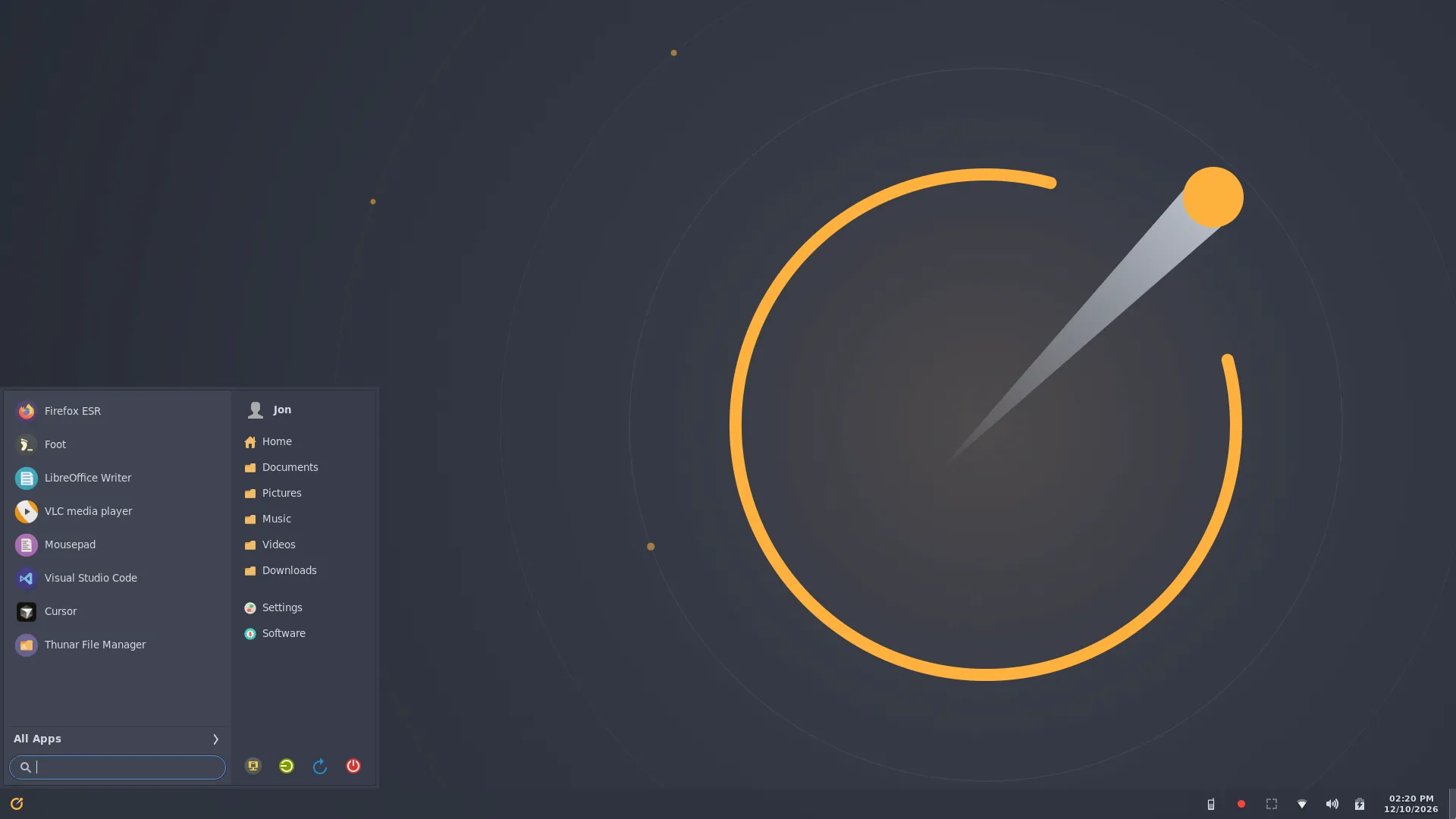
- Debian 13trixie · Linux 6.12 LTS
- labwc Waylandlightweight compositor
- amd64BIOS + UEFI hybrid ISO
- ~1.4 GBlive ISO + Calamares
Built for everyday use
What ships in FlickOS 2.2 — the same stack the ISO boots.
Three live layouts
Redmond, Cupertino, and Traditional — switch from Settings without logging out. Traditional has four desktops.
Optional tiling
flick-tiler is off by default. Super+T toggles it; Super+M cycles arrangements.
History: undo and redo
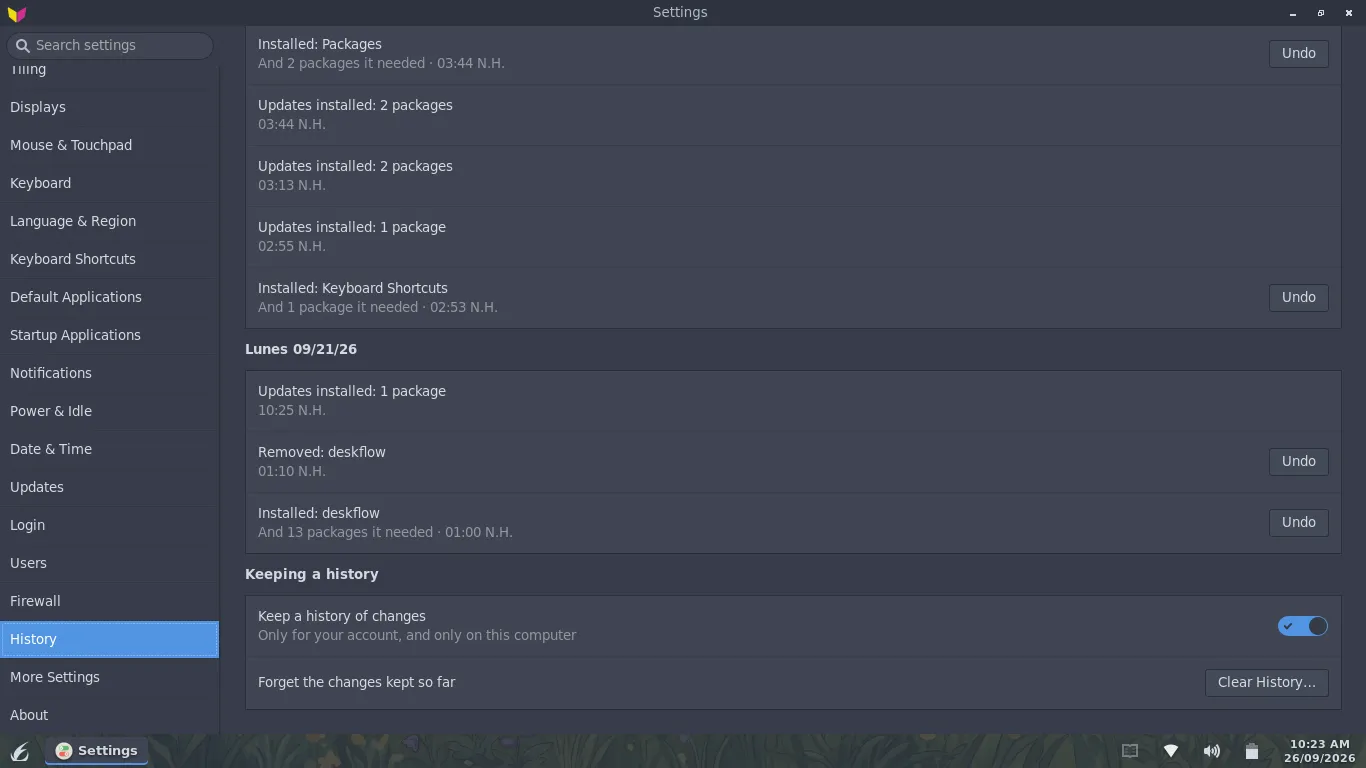
Settings → History lists every change to the desktop and installed software, newest first, each with Undo — and an undo can be undone too. Put Back as It Was… returns your settings to an earlier day.
Settings → History
Every change has an Undo button
Tried a new layout? Turned on tiling by accident? Removed an app you needed? History lists what changed, in plain words and newest first, with Undo next to each change.
- Settings. Layout, style, tiling, input, power, default and startup apps, firewall, updates — whether you changed them in Settings, with a key, or in a terminal.
- Software. Installs and removals from Software or apt. Undo shows what it will do before it asks for your password.
- Put Back as It Was… Returns your settings to how they were on an earlier day, and that can be undone too.
History or a restore point?
History undoes one change and leaves the rest alone, at once and without a restart. A restore point puts the whole system back to before an update, and takes a restart. Use History for a change you regret, and a restore point when the computer itself is broken. As far as we know, no other Linux desktop has an undo list for its own settings.
Settings → Restore Points
And if an update breaks the computer
Before every software change, FlickOS saves the system as a restore point. If an update goes wrong, put the computer back as it was before it: from Settings, or from the boot menu when it no longer starts.
- Every change. Software, apt in a terminal, and automatic updates each make one first. The newest five are kept, and none is made when the disk is nearly full.
- Put Back… Shows what will change before anything does. The system you had becomes a restore point too, so putting back can be undone.
- From the boot menu. Every restore point is in its own menu when the computer starts, so a system that no longer starts can still be put back.
On a new install of 2.2
Restore points need the disk layout the 2.2 installer sets up by default (btrfs). Computers installed with 2.0 or 2.1 keep working as before but don't get them: an upgrade can't change how a disk is formatted. Unlike Timeshift or Snapper, there is nothing to set up.
When an update stops the computer from starting
- You install updates. A restore point is saved first.
- The computer doesn't start, and doesn't start again on the next try.
- The third start uses the newest restore point that worked. After you log in, a notification says so.
- In Settings → Restore Points, keep the restored system, or try the newer one again. Nothing is changed until you choose.
Rather choose yourself? Turn off going back by itself in Settings, and the boot menu waits for you instead.
Three layouts, one desktop
Switch live from All Settings → Desktop Layout & Style.
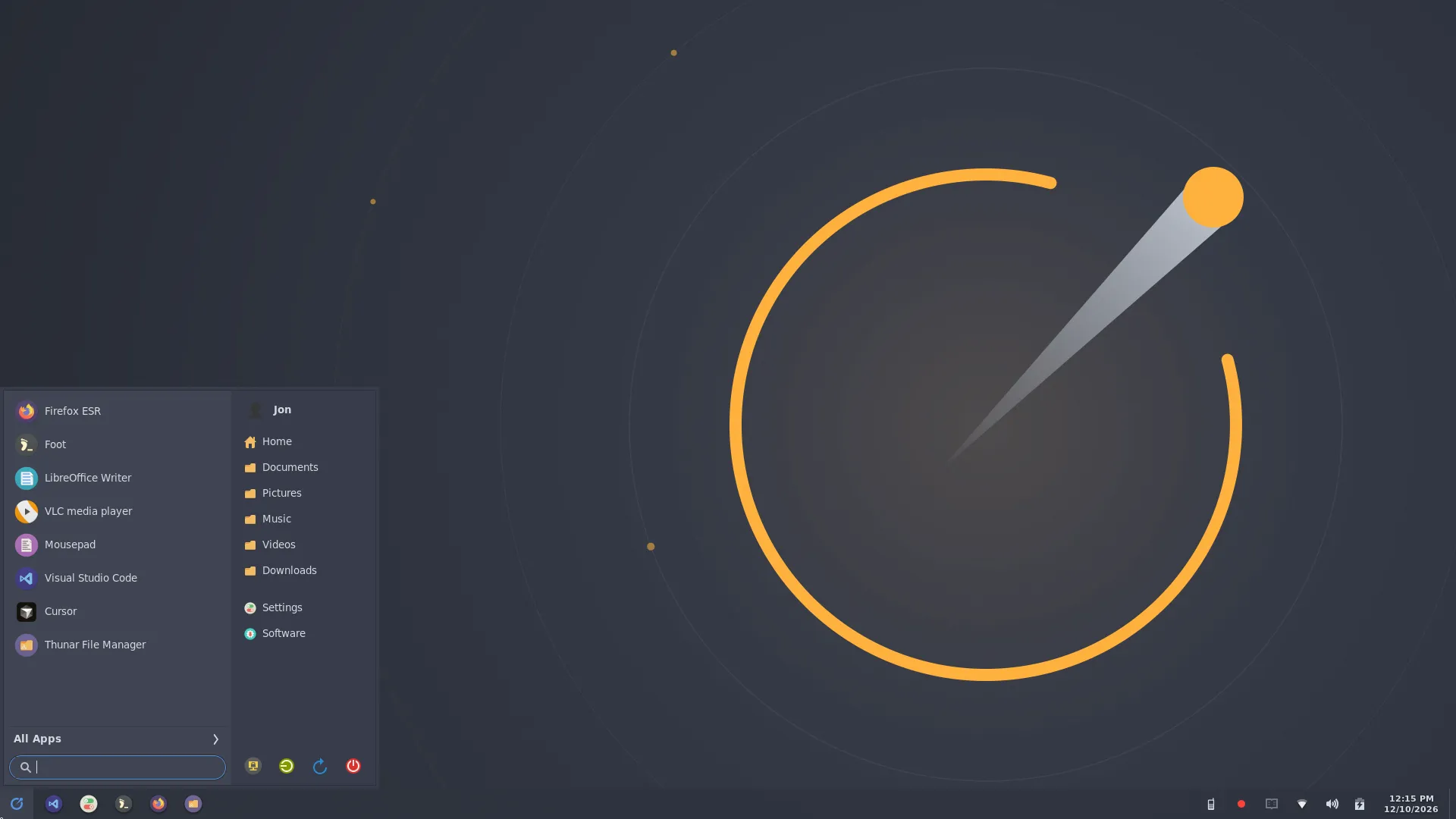
Redmond
One bottom panel — the default.
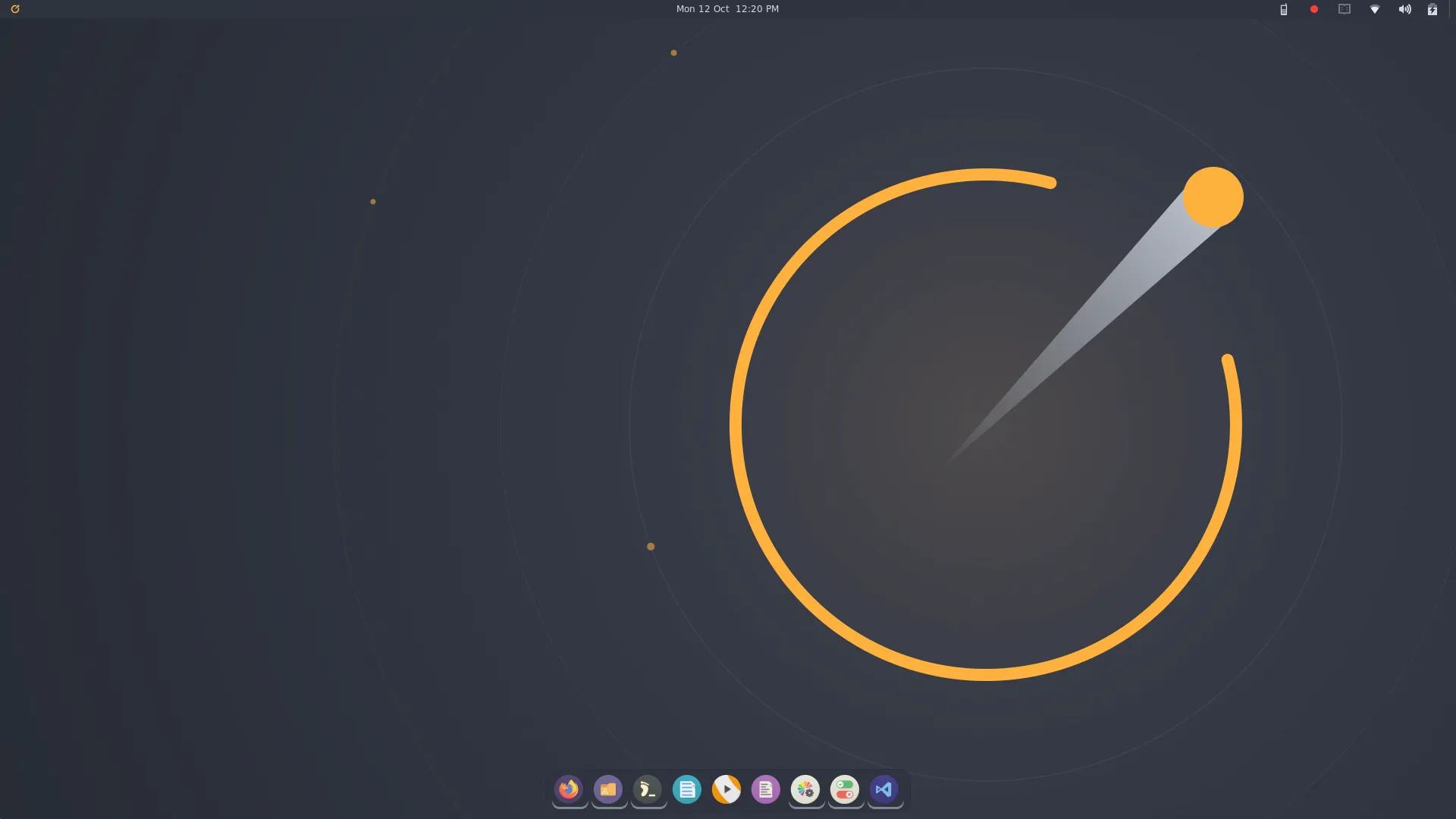
Cupertino
Top bar and an auto-hiding dock.
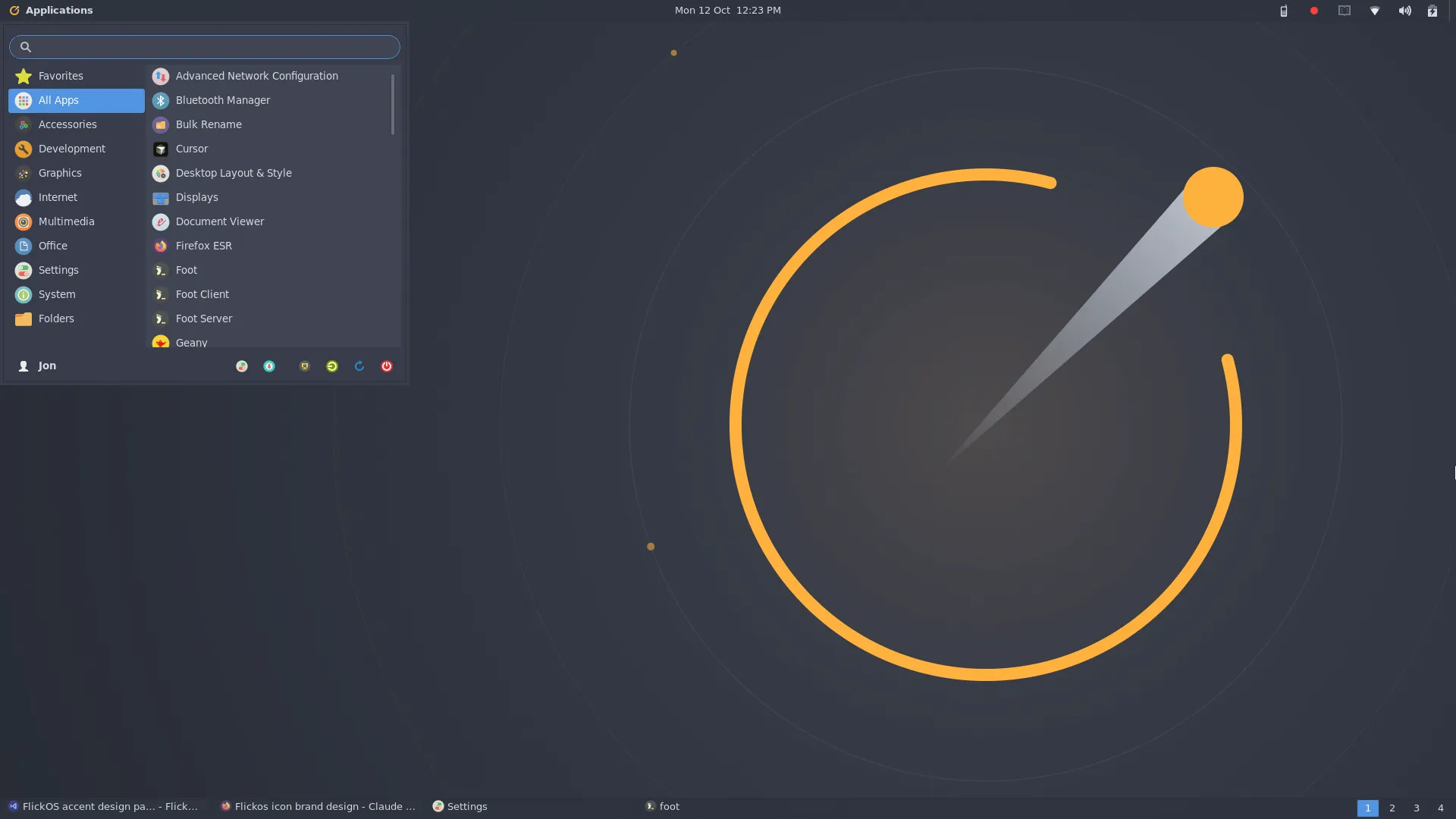
Traditional
Top panel, a window list, and four desktops.
What people are saying
From the comments on our Facebook post.
I think it’s one of the most interesting distros I’ve come across recently. It is lightweight without looking like it, and offers something different to the usual suspects.
Neville W. I thought I’d throw up a VM and check it out. Well? It’s awesome. If you haven’t tried it, you should.
Maurice J. Great, easy to use, clean interface and fast! Works great even on 2013 celeron laptop. Keep up the good work!
Pekka K. I am on Windows since my first PC and this is the first distro I am willing to try.
Piotr K.
Keybindings
Right-click the desktop for the full menu.
| Key | Action |
|---|---|
| Hold Super | Shortcut sheet |
| Tap Super | Start menu |
| Super+Enter | Terminal |
| Super+D | App launcher |
| Super+E | File manager |
| Super+B | Web browser |
| Super+V | Clipboard history |
| Super+Q | Close window |
| Super+Shift+D | Show desktop |
| Super+Esc | Task manager |
| Super+L | Lock screen |
| Super+Shift+E | Log out |
| Super+T | Tiling on/off |